STOP
Is someone urgently asking for your username and password, social security number, credit or debit card information, or something else personal?
Don't respond immediately, double check the website, sender, where links lead, and if it is a legitimate need before continuing.
Email seem fishy?
Send an image, forward the email, or describe what is happening to this email:
- Spam@wright2repair.com
This email is regularly monitored, and there is no charge. I will happily inform you whether something is a scam, bad link, or related to phishing.
What is Phishing?
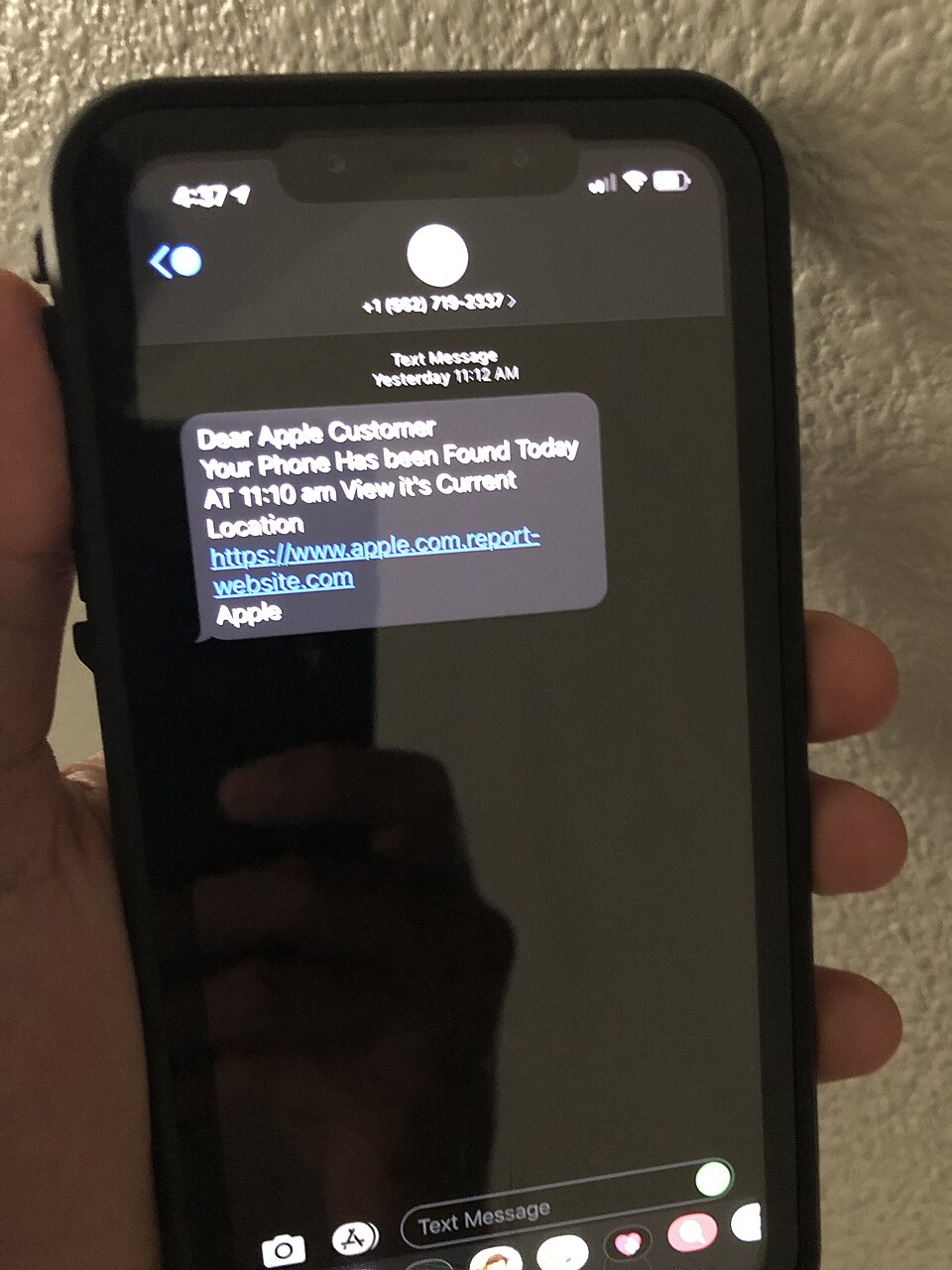
This page is dedicated to Phishing support and identification. This will come with a number of definitions, guides on identifying information gathering attempts, different types of common scams, and how to block or circumvent them.
Phishing is defined as an attempt to gather an end-user's personal information (social security number, name, phone number, address, username, passwords, or anything else that may be useful). Through social engineering, overt hacking, information gathering, or some other means.
If an email, website, phone/video call, or text chain is asking for any of this information, regard it with suspicion. There are plenty of reasons why someone might be legitimately asking for this information, but when they do, you should really trust that source of information. There are many things you can do to check the validity of these requests, but if it uses extremely urgent language, take a deep breath, and think about it for a moment. If it's that important, they'll probably send you another message via snail mail, or they'll call you back. Double checking can save you a lot of heartache.
What does Phishing look like?
Phishing usually looks like a phone call warning you that your car's extended warranty is just about to expire, so you have to act fast. Or an email that tells you your account has been hacked, and that you must log in to fix it. Or perhaps you received about a million notifications that your computer has a virus (which ironically acts more like a virus than the virus that it would help you find).
Most phishing strategies are built on social engineering, either gaining your trust enough to get you to send your information willingly, or to cause enough panic so that you aren’t thinking and sending that same information.
Phishing is becoming harder to spot because it is becoming more sophisticated and complex. Below, I am going to go through some common phishing techniques, how to identify them, and how to block them.
Phones and phishing

I am going to start with phone calls and text phishing, because with the advent of large language model AI, these have become a lot more adept.
Phones
Most of these systems will ask for your information in one of two ways, in a panic (you need to act now, or else lose something), or they will chat with you for a while, gain your trust, and then ask for sensational information.
The number one thing to check: the number. Is it a number you know? Is it a call you are expecting? Is it a local area code? This is not always trustworthy. To figure out why, I am going to have to take a detour to define a word: Spoofing.
Definition: Spoofing - This is a really funny sounding word, but it’s real. Spoofing is the act of calling under a phone number that is not your own. It is surprisingly easy, and can be set to almost anything. Local IRS phone numbers, insurance providers, a random number of someone in the area. Basically, it is someone calling under the alias of a different person, and your phone can’t tell.
The best and fastest way to combat a phone phishing scam is to hang up, and call back. Better yet, look up the phone number of the office that is supposedly calling you, and call the number they have posted. A lot of businesses and organizations don’t have phone support anymore, so not being able to find one is a red flag.
Additionally, if something is as big of a deal as a call is making it seem, you’ll probably get some snail mail about it soon.
Text
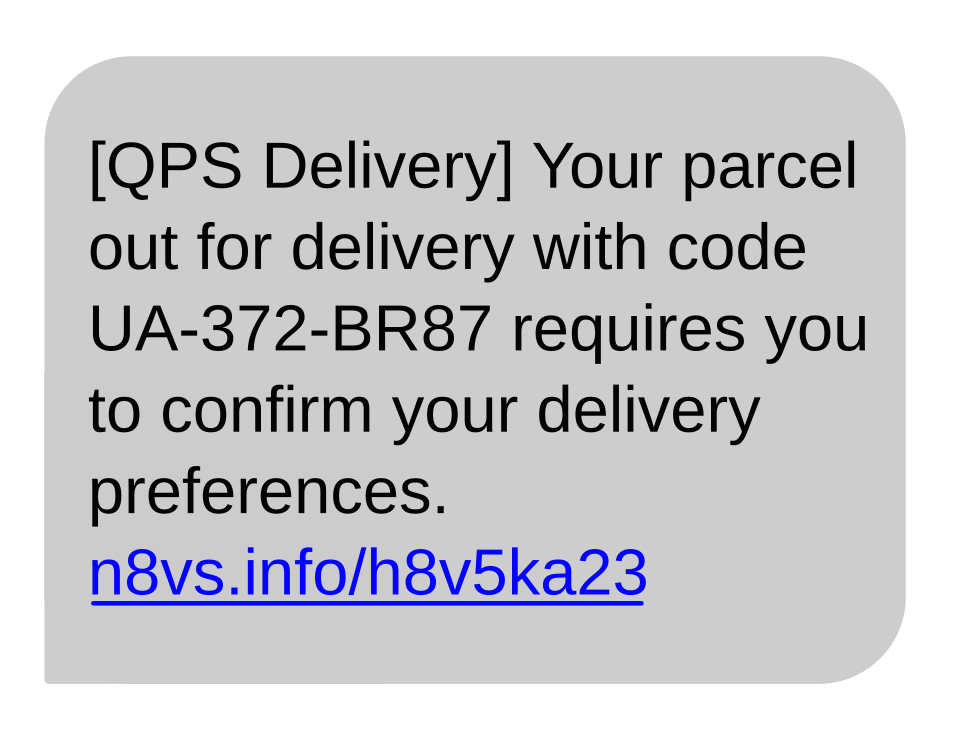
Texting phishing is a slightly different beast. Texting is not a secure encrypted system. Service providers and certain branches of the US government can access data given they have a warrant, which is not ideal for people hoping to pose as somebody else, but that does not mean it won’t happen. Texts can be spoofed too, so look out for that.
Once again, a good idea when being texted by a number you don’t know, or someone who is causing you to panic, a good idea is to look up their number, and call it. Texting is easily done en masse, especially through AI models, texts can be sent quickly, and it can be harder to spot what’s real.
Because texting is not encrypted, if you engage with someone texting you, they may ask you to move to a different platform, such as WhatsApp or Facebook Messenger. This is, generally speaking, a red flag. A friend or family member that you may know in-person might suggest using these apps, and that is completely fine, but a stranger asking you to use them could be taking advantage of their anonymity. (Not to say that anonymity is all bad.)
Online Phishing
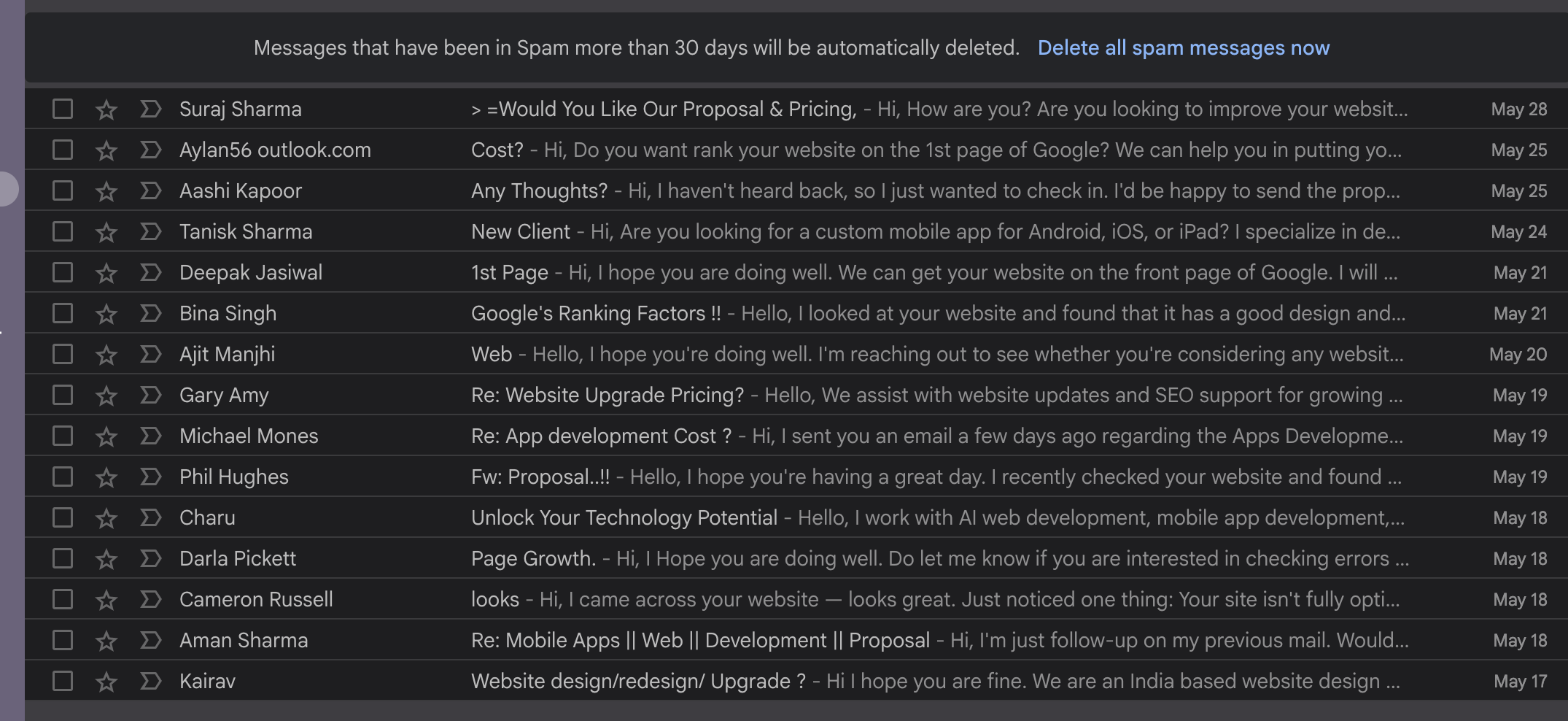
The below section will be dedicated to phishing that occurs primarily online.
Email phishing is somewhat common, and will usually happen because you signed up for something, applied for a job that was fake, or used it to get access to something behind a sign-in screen. Although, sometimes websites or services have data breaches through hacking, phishing, or via some ransom, and your email gets put on a giant list that is available to anybody. As much as this sucks, it has probably happened to most of us.
Email phishing can be a little bit more complex, so I am going to break this up into sections based on what the bad actor wants you to do.
Reply Directly to this email
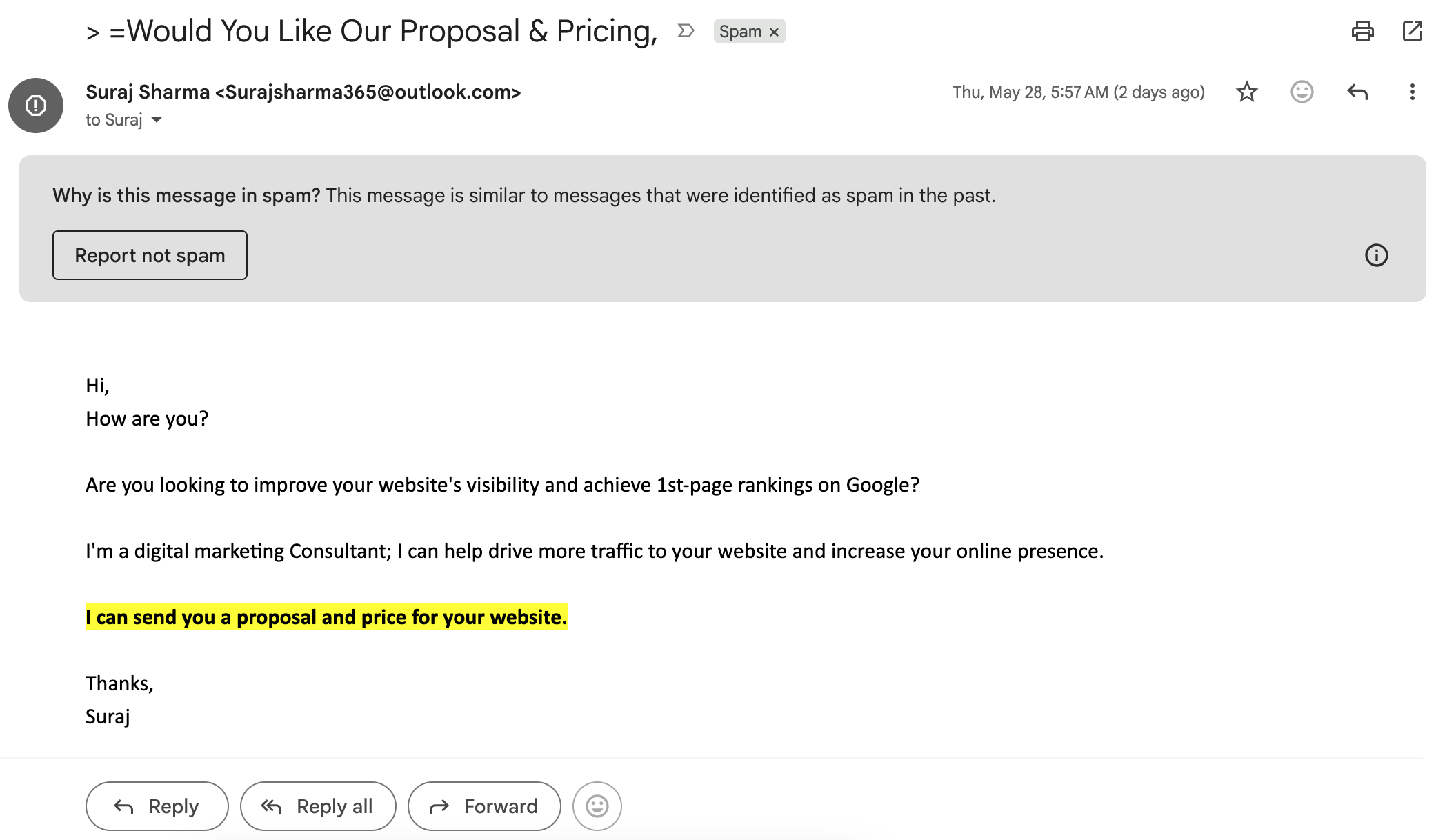
The simplest type of phishing email is one that asks you to reply to it directly with sensitive information. In this circumstance, the red flag is asking for information that could get your account(s) or identity stolen. That is, Social Security number, Birth Certificate (or information on it), State ID, Passport, or your username and password. Worthwhile IT support technicians will NEVER ask for your username or password over an unsecured line or network.
Sometimes this information does need to be sent via email, so the next step is to figure out if it makes sense. Got a job offer? You may need to send this information for an I-9. Other circumstances include certain job applications, conversations with banks, or financial advisers, or with an organization you are working with. But sometimes this isn’t enough to prove it, so I will go over one more way to check.
It is much harder to spoof an email than a phone number. Because of this, it is a very good idea to always check the sender. There are two things you should be checking, the user, and the domain.
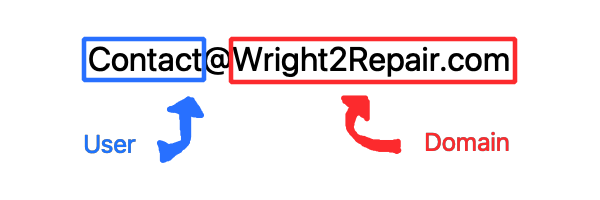
The user, anything before the “@” symbol, should be associated with something that makes sense, such as “HR,” “Contact,” “information,” or someone's name
The domain, anything after the “@” symbol, should exactly match the website associated with the organization you’re communicating with. There are very rare exceptions to this rule, but it is in fact a red flag.
So if you receive an email from me, from contact@wright2repair.com, you’ll know it’s me, because that domain matches my website exactly. But if you got an email from contact@wrightdeuxrepair.com, you should check on that, because that is not associated with my website. A common way to get around this is with misspelling a domain, or swapping an “i” with a lowercase “L.”
An example of a circumstance when this wouldn’t always be the case is if someone was using a subdomain, and contacted you from contact@hr.wright2repair.com. The text to the left and right of the final period is the most important, because the only way to use the domain, the final portion, is if you own the website yourself, and anything before that may be used to denote the name of the subdomain, still owned and managed by the domain’s owner.
Click this Link
Some emails looking to steal your information do so in a secondary location, on a different site. This is where things get complicated, because if one is hosting on a separate site that they own and operate, they will have far more sophisticated tools at their disposal. Many of the tools mentioned in the prior section are still the best ones for this type of phishing system. You want to know that the context for the email makes sense (did I ask for this link?), that the sender is who they say they are, and that the information they are asking for makes sense.
There are several different link types that you may encounter, and below I will go through some that might set off alarm bells.
Definition: Shortened Links - Shortened links are a system in which a long link can be shortened via a proxy to one that is around ten characters. Most larger organizations will have their own link shortening system. For example, Oregon State University may send a link shortened to Beav.es/AAAA where the A’s are a code that leads to their link. However, smaller businesses usually use a separate service since that takes extra money and work. This link: bitly.com/98K8eH is one I trust myself. Click on it and you’ll see that it was not what it seemed.
Shortened links are not necessarily a red flag, but because they can obfuscate what the actual link is, they should be regarded with some more suspicion than another one. If you see one, double check the sender is reliable.
Another way that I have seen bad actors obfuscate their links is through embed images.
Definition: Embed Images - Embed images are images that, when clicked on, send you to an associated link. They are very easy to make, this website contains a couple.
One of the smarter ways I have seen embed images used is by filling the entire email with one imaged that looked like a log-in screen, so that if you clicked anywhere inside the email, it would redirect you to a new tab log-in, which was a spoof of the actual log-in, and would send your log-in info back to the bad actor. One way to check for this is if you hover over an image (without clicking) and your cursor turns from an arrow to a little hand with its index finger out, it is “clickable,” and therefore embed.
This is not to say that embed images are all bad, they are a very useful tool, but even seemingly good or neutral tools can be used nefariously if one tries hard enough.
In a different section, I will talk about what to do if you click a link, accidentally or on purpose, that you suspect may be a phishing attack.
Download this attachment
This type of phishing scam is far less common than it used to be. If an email is asking you to download something, you should always reward this with suspicion. At this point, default anti-virus software on Windows and Apple machines are sophisticated enough that this is becoming far less common as a vector for attack, but the goal here is to get you to download an overt virus.
Following the steps outlined in a prior section of this page are going to be your strongest tools to combat this. Do I trust the sender? Does it make sense to receive this right now? Is this a legitimate need?
The second best method to avoid the actions of a bad actor is to check the file extension.
Definition: File Extension - Most files (Exceptions being files with hidden extensions, and certain files on Apple and Linux computers) have a file extension. When you see a file saved on your computer, it should be named something like friend.png if it is an image file, or chrome.exe if it is a program file on a windows computer. The information after the dot is the file extension, and it tells your computer what it is, and what to do with it.
Generally speaking, the main type of file extension you want to avoid is .exe, short for executable. Most programs are .exe files, so they are in fact unavoidable, and you will probably find yourself using them on the daily, but being sent one with little context via an email or a website that you don’t absolutely trust could mean you are installing a virus. Be careful what you download, and even more careful what you open on your computer.
Move to a Different Platform
The final type of phishing attack I am going to talk about in the email section are those that ask you to move to a different platform. As with previous sections, your best tools are to ask yourself if the context of this email makes sense, if it is a trusted sender, and is this a legitimate need?
As mentioned in the texting section, moving platforms can be a useful tool for bad actors. Using encrypted platforms makes it harder to track your activity, and easier to erase your tracks. Something Email is notoriously bad at. Because I already covered this issue, I will link back to that here, because for the most part, those same rules apply.
Websites and Safe Internet Browsing
Sometimes phishing happens on the web outside of your normal communication methods. Usually this would be because you clicked on a link that brought you there, the website you normally use got hacked, or your browser changed to that website for some other reason. Maybe you were watching movies on a free media website. In any case it doesn’t really matter, what’s important for this section is that you remain safe when it does happen.
Manipulative Ads
This may seem odd, but many websites, even trustworthy ones, employ ads whose goal is to launch a phishing attack. Some are just trying to get you to buy something, many things aren’t worth what they are selling it to you for, but such is life when advertising prevails. In most cases, my advice is to just ignore ads. If it’s something you really needed, you would have found it on your own. But the best way to prevent phishing ads is to stop yourself from seeing them in the first place. Which is why I recommend everyone use an adblocker.
Definition: Ad Blocker or adblocker - An adblocker is an extension you can install within your browser to prevent ads from showing up in the first place. This only stops things like pop-up ads, ads inserted within videos you want to watch, ads opened in new windows, and the banner ads that populate around the sides of articles.
Definition: Browser Extension - A browser extension is basically an app within an app. It can be a powerful tool to enhance your browsing experience, with tools such as adblockers, citation generators, or secure password storage. Unfortunately, extensions can also be used nefariously. Once you give permission to have it installed, it has a lot of power to send and receive information, and often ads. Only allow extensions you absolutely trust.
My preferred ad blocker is uBlock Origin, which is a frequently updated tool by a relatively large team. However, there are plenty of other ad blockers that work just fine as well. Below will be links to instructions on how to install an ad blocker.
Fake Log-In
Usually you won’t mean to be here, but it happens to the best of us. Maybe you clicked on an embed image like in this section, or you ended up here redirected from a different website. This section is going to go over tips on how to spot a fake log-in screen.
The goal of a fake log-in screen is to mimic that of a real one, and instead of logging you in, it will take your log-in information and send it to the bad actor.
The first question you should ask yourself is; How did I get here? If you don’t remember clicking “Log-In” somewhere else, then that’s a red flag, and you might want to back out and close the tab. If it came from an email that put you in a panic, you should double check that email more closely before going further.
Next, you should check the domain. Rather than being from the sender, like outlined in the previous section, it should be at the top of your screen in the big bar right below your tabs. The domain should correlate to the type of account you are signing into. For example, if it is asking for an email sign-in, the domain should include “google.com”. This gets a little confusing sometimes, because some organizations use an external service for account management. For example, Oregon State University uses Microsoft accounts for almost all of their sign-ins, so the domain would contain microsoft.com, except for a few outliers such as canvas, which uses a locally hosted external service, so it uses canvas.oregonstate.edu. It is a good idea to familiarize yourself with what websites are trusted
Something else that may notify you something is wrong is if your sign-in doesn’t automatically populate. I don’t save my log-in information on every website I visit, but when I go to one I have saved, and it doesn’t automatically populate my information, I know to check how I got there, and to double check the domain.
This is the kind of advanced phishing technique that gets complicated, so if you aren’t sure, you can always ask at spam@wright2repair.com.
Push Notifications
Push notifications are a useful tool for app developers, but can also be used to send you into a panic and send information you shouldn’t.
Usually, I encounter these types of phishing schemes from a customer who sends an email titled “I think I have a virus!” If this is what you’re thinking, you are absolutely right to think that. These types of attacks are meant to look like you have downloaded a virus, but you haven’t. They are hoping that you will download a virus, or send information you shouldn’t because of the panic that it induces.
Usually these attacks happen because you clicked “allow” on a pop-up request while browsing the internet. I can’t blame you for doing so without thinking, with the number of cookie requests and location requests we get every time we want to so much as look at a recipe, I’m surprised this doesn’t happen more. Be aware of what you are allowing websites to access, but letting the odd bad-actor slip through the cracks happens to a lot of people.
These types of attacks are most common on Windows computers, but can occur on Apple devices as well. Here are some examples of what they may look like:
Rather than appearing in your browser, they are a notification that is sent by your system outside of it. You can usually spot these because the notification is labeled as coming from the name of your browser, but the big bold text telling you to panic can sometimes overwhelm your ability to think.
Don’t click that notification. It will redirect you to a website that wants your information or it wants you to download a fake antivirus. Both are bad.
Instead, we are going to go over how to block those notifications. The following videos are going to go over where to find websites sending you notifications, how to block that action, and how to block the website altogether.
Contact

A link below is to our email, which is our preferred communication method. We will be more than happy to communicate over the phone, in-person, or via zoom upon request.
contact@wrighttorepair.com
Please be as detailed as possible in your communication. We always appreciate as much information as you can recall. Additionally, images, screenshots, and descriptions of what led up to problems are always appreciated.